Use the rest timer and notifications
Set rest durations and get alerts when it is time for the next set.
The rest timer helps you keep the workout moving after completed sets. It can choose a rest duration automatically, use a fixed duration, alert you when rest is complete, and remember exercise-specific changes.
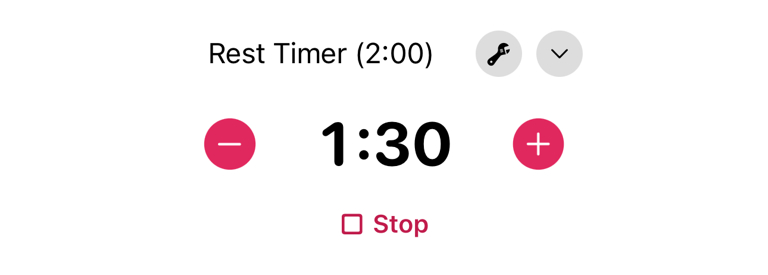
The timer runs during active workouts when Rest Timer is enabled and there are remaining sets.
Enable or disable the rest timer
- Tap the Settings tab.
- Tap Rest Timer.
- Turn Enable Rest Timer on or off.
When the timer is enabled, LiftHer can show rest progress during workouts and schedule a rest alert. When it is disabled, completed sets do not start rest tracking.
Choose the default duration
- Tap the Settings tab.
- Tap Rest Timer.
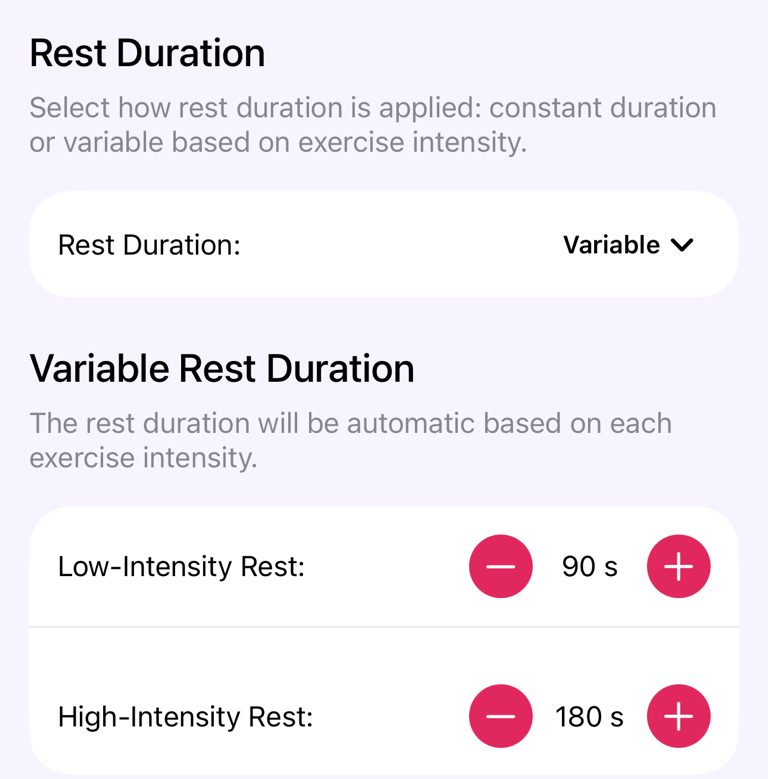
- Under Rest Duration, choose Constant or Variable.
- For Constant, adjust Rest Duration:.
- For Variable, adjust Low-Intensity Rest: and High-Intensity Rest:.
Constant uses the same duration for all exercises. Variable chooses a duration based on exercise intensity and keeps it between the low- and high-intensity values.
Use warm-up and exercise-specific rest
Turn Reduce Rest for Warm-Up Sets on when warm-up sets should use a shorter rest. Warm-up rest is calculated separately from normal working-set rest.
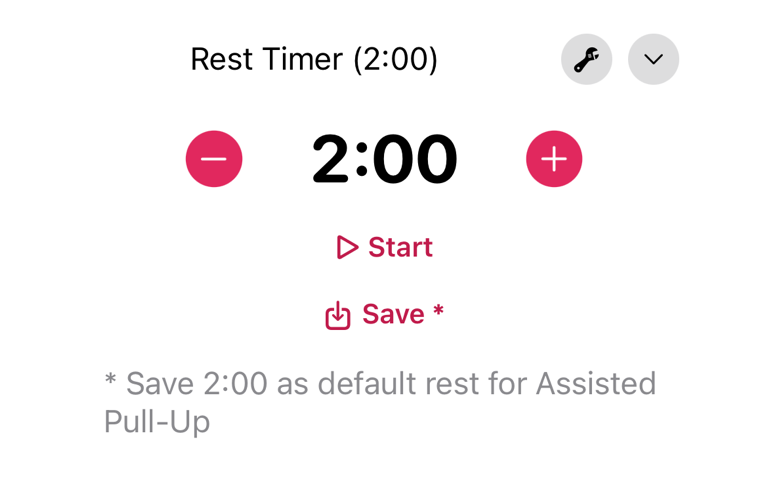
If you change the current timer duration after a set, LiftHer can offer to save that duration as the default rest for that exercise. Saved exercise durations appear under Exercise-Specific Rest Durations, where you can delete them later.
For marking warm-up sets, see Use supersets, warm-up sets and drop sets.
Restart or change the timer
After a set is completed, the timer uses the next recommended rest duration. If a timer is already running, changing the duration updates the current timer. Starting a new rest stops the previous timer and starts again from the new duration.
The timer resets when the workout starts, finishes or is canceled.
Notifications, sound and vibration
When rest ends, LiftHer plays the rest timer sound and gives a success vibration while the app is active. It also schedules a Rest Complete! notification with Time to crush your next set! so you can be alerted from the Lock Screen.
Notifications need iOS notification permission. If notifications are disabled, the Rest Timer settings show Enable Notifications.
Apple Watch
If you use the Apple Watch app, rest timing can appear there during workouts. When a paired Watch is available, Apple Watch: Auto-Save Rest Changes can save Watch rest-time changes as exercise defaults. Warm-up and normal set durations are saved separately.
Troubleshoot missing notifications
- Tap the Settings tab.
- Tap Rest Timer.
- Confirm Enable Rest Timer is on.
- Tap Enable Notifications if it appears.
- Check iOS Settings and allow notifications for LiftHer.
- Make sure the workout has remaining sets.
If the timer is disabled, the workout is finished, or there are no remaining sets, LiftHer cancels the scheduled rest notification.
Common questions
Why did the timer use a shorter rest?
Warm-up sets can use reduced rest when Reduce Rest for Warm-Up Sets is enabled. Variable rest can also choose shorter durations for lower-intensity exercises.
Why did my custom rest appear again?
If you saved a duration for that exercise, LiftHer uses it before the general default. Delete it from Exercise-Specific Rest Durations to return to the normal setting.
Do rest timer settings change old workouts?
No. They affect rest timing during active workouts. They do not rewrite completed workout history.