Sync, back up and restore your data with iCloud
Keep your training data available when you change phones, reinstall the app or use more than one device.
LiftHer stores your training data on your iPhone first. When iCloud is available, the app also backs up and syncs that data through your private iCloud account so it can return after a reinstall or appear on another device.
How it works
Your workouts, plans, exercises and related training data are always saved locally on the device you are using. iCloud Backup adds a private cloud copy and keeps your devices in sync when they use the same Apple ID.
The app checks your iCloud account status from iOS. When iCloud is available, backups run automatically. When iCloud is not available, LiftHer still works normally, but new data stays on that device until iCloud is enabled again.
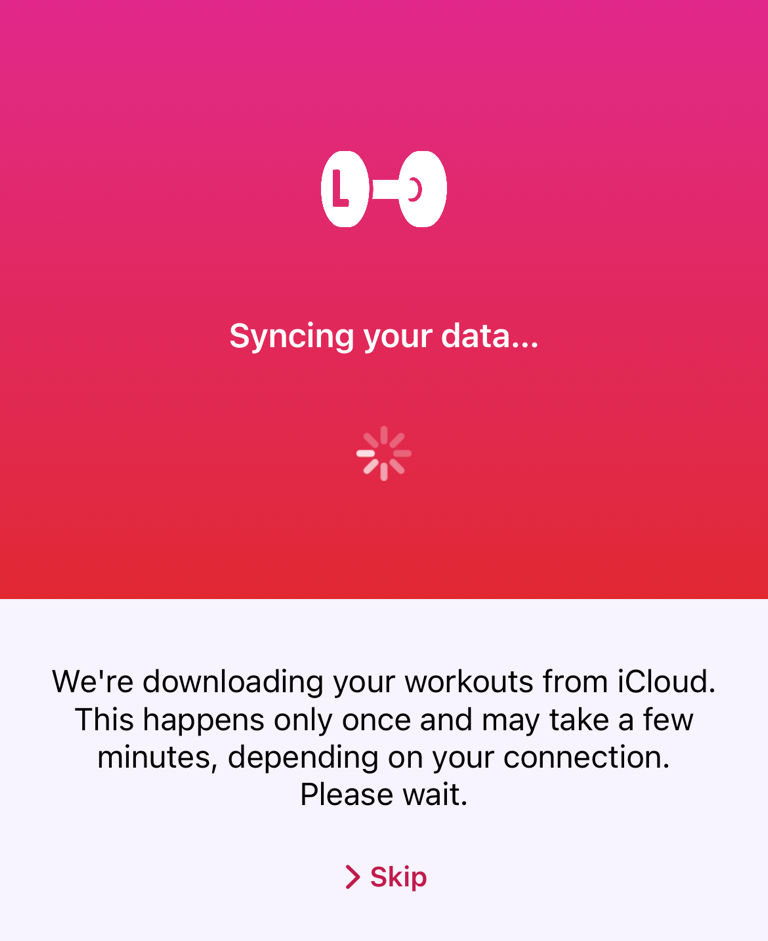
On a new install with existing iCloud data, LiftHer may show Syncing your data... while it downloads your workouts. After a short wait, Skip can appear. If you skip, previous data continues to appear gradually in the background.
Confirm that iCloud Backup is active

- Tap Settings.
- Tap the iCloud Backup is On or iCloud Backup is Off row.
- Check the iCloud Backup screen.
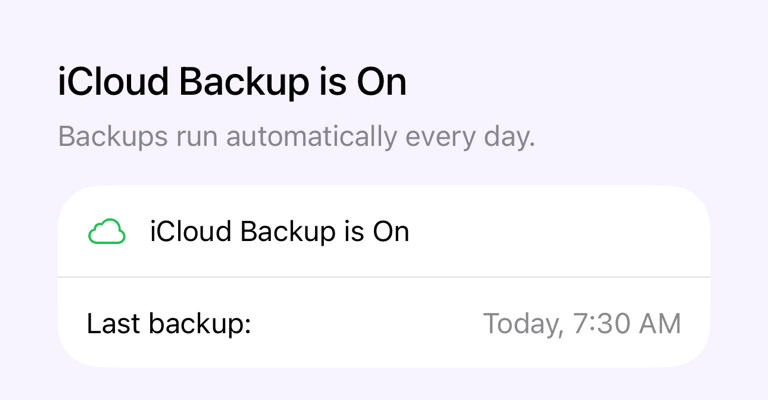
When iCloud is active, the screen shows iCloud Backup is On and Backups run automatically every day. It also shows the last backup time when one is available.
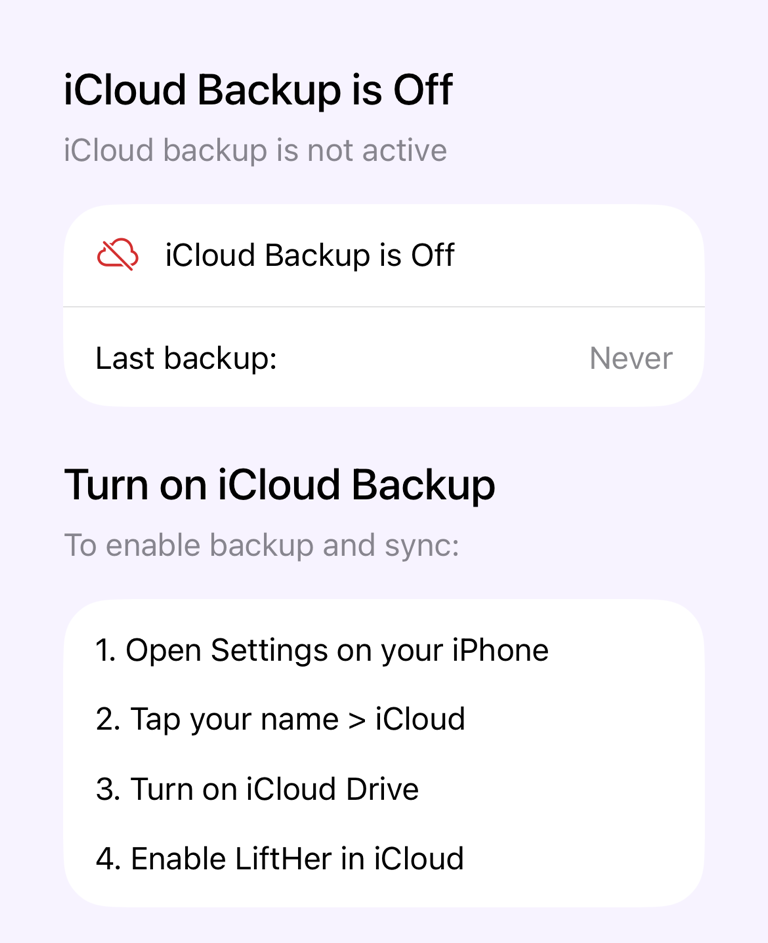
If the screen shows iCloud Backup is Off, follow the instructions in that screen to enable iCloud for LiftHer.
Turn on iCloud Backup
If LiftHer says iCloud Backup is off, enable it in iOS:
- Open Settings on your iPhone.
- Tap your name, then tap iCloud.
- Turn on iCloud Drive.
- Enable LiftHer in iCloud.
- Return to LiftHer and check the iCloud Backup screen again.
Move LiftHer to a new iPhone
- On your old iPhone, open LiftHer.
- Tap Settings.
- Tap the iCloud Backup row and confirm that iCloud Backup is On.
- Keep the app open long enough for the latest backup to finish if Backup is in progress appears.
- On your new iPhone, sign in with the same Apple ID.
- Install LiftHer from the App Store.
- Open the app and wait while it downloads your iCloud data.
Use the same Apple ID on both devices. iCloud data cannot sync between different Apple IDs.
Reinstall LiftHer safely
Before deleting the app, open the iCloud Backup screen and confirm that iCloud Backup is on. If you reinstall on the same Apple ID, LiftHer can download the iCloud copy again after installation.
If iCloud Backup is off, deleting the app can remove the local data stored on that iPhone. Turn on iCloud first or use Import or Export Your Data from Settings if you want a separate manual file.
Use LiftHer without iCloud
LiftHer works without iCloud. You can log workouts, edit plans and use the app normally. The difference is that your data stays on the current device and does not automatically restore on a new phone or sync to another device.
If you enable iCloud later, the app can start backing up and syncing from that point.
Important behaviour
Disabling iCloud for LiftHer stops cloud backup and sync. The app may continue to show the data already on your device, but changes are no longer protected by iCloud until you enable it again.
Deleting LiftHer data from iCloud is different from turning sync off. The app warns that if you disable iCloud for LiftHer or delete its iCloud data, synced data is removed everywhere, including on the current device. Do not delete iCloud data unless you are sure you no longer need it.
If a backup or download is running, the Settings row can show iCloud Backup is In Progress and the iCloud Backup screen can show Backup is in progress. Keep the app open and connected to the internet until it finishes.
Troubleshoot syncing
If syncing looks frozen or data has not appeared yet:
- Check that the device is connected to the internet.
- Open iPhone Settings and confirm that iCloud Drive is on.
- Confirm that LiftHer is enabled in iCloud.
- Open LiftHer and leave it in the foreground for a few minutes.
- Check whether the iCloud Backup screen shows an error message.
If an error appears, press and hold the error row to copy the details, then contact support from Information, Help & Contact for LiftHer in Settings.
Common questions
Does iCloud replace local storage?
No. Your data is saved locally first. iCloud adds backup, restore and multi-device sync.
Why does my new iPhone not show everything immediately?
The first iCloud download can take a few minutes depending on your connection and the amount of data. If you skip the waiting screen, data can continue appearing gradually.
Can I recover data after deleting it from iCloud?
Usually no. If LiftHer data is deleted from iCloud and removed from your devices, the app may not have another copy to restore. Only delete iCloud data when you intentionally want to remove it.