Use exercise variations for different machines and gyms
Keep progress separate when equipment or technique changes.
Different gyms often have different machines. Variations let you track those setups separately, so a chest press at one gym does not get mixed with a different machine somewhere else.
How variations work
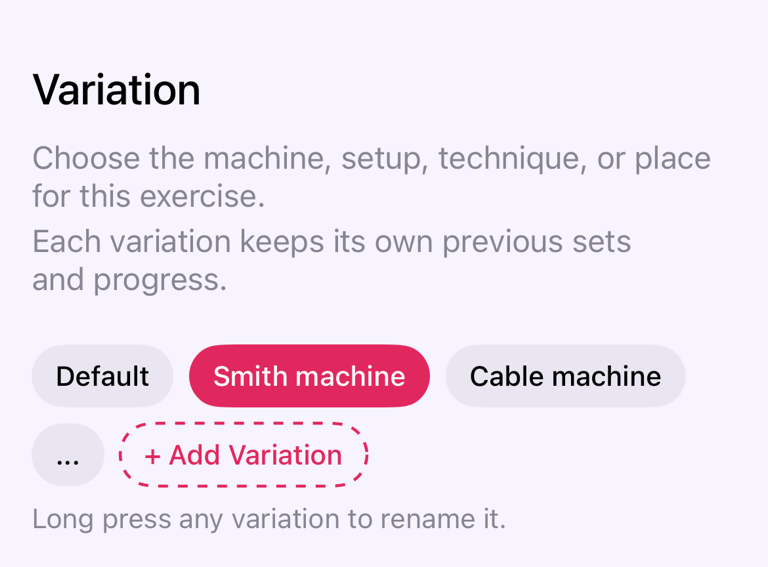
A variation is saved on the exercise in your current workout. Each variation keeps its own history, so Gymfile can show progress that matches the machine, grip, technique, or gym setup you are using.
Every exercise starts with Default. Add another variation when the numbers should not be compared directly with another setup. Recent variations are shown first. Older or hidden variations may be behind the ... chip.
If you train at different gyms, turn on Auto-select variation by place. Gymfile remembers which variation you used at each location for that exercise. The next time you train there, Gymfile can choose the right variation automatically, so you do not need to switch it yourself.
Choose a variation during a workout
- Open the active workout.
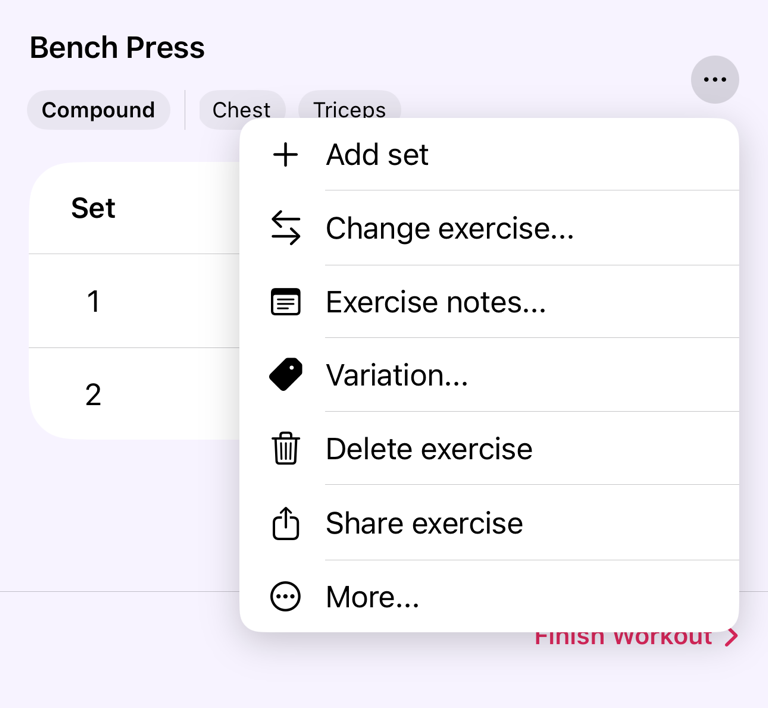
- On the exercise, tap ....
- In the menu, tap Variation....
- In Exercise Variation, choose the variation chip you want.
- Tap Save variation.
Add a variation
- Open Exercise Variation for the exercise.
- Tap + Add Variation.
- Enter a name in Variation name.
- Tap Save.
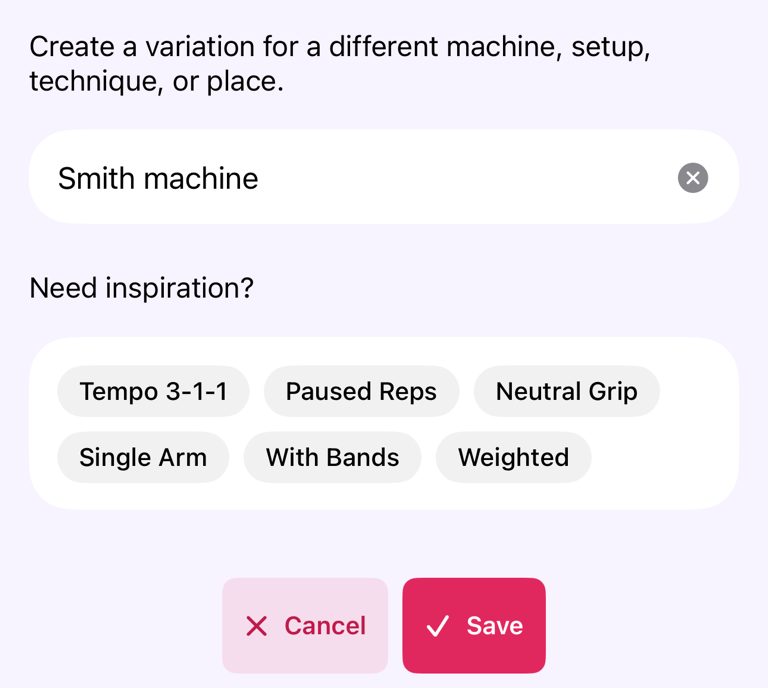
After saving, the new variation is selected for the current exercise. Use a clear name such as the machine type, gym name, grip, or technique.
Remember the variation for each gym
- Open Exercise Variation.
- Turn on Auto-select variation by place.
- Allow location access if Gymfile asks for it.
- Choose the variation that matches your current gym or setup.
- Tap Save variation.
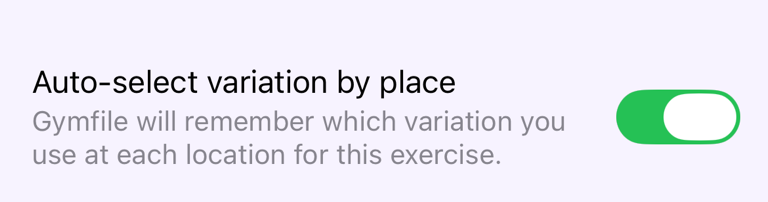
For example, if you save variations like Downtown Gym and Hotel Gym, Gymfile can select the matching variation the next time you train at each gym.
Rename a variation
- Open Exercise Variation.
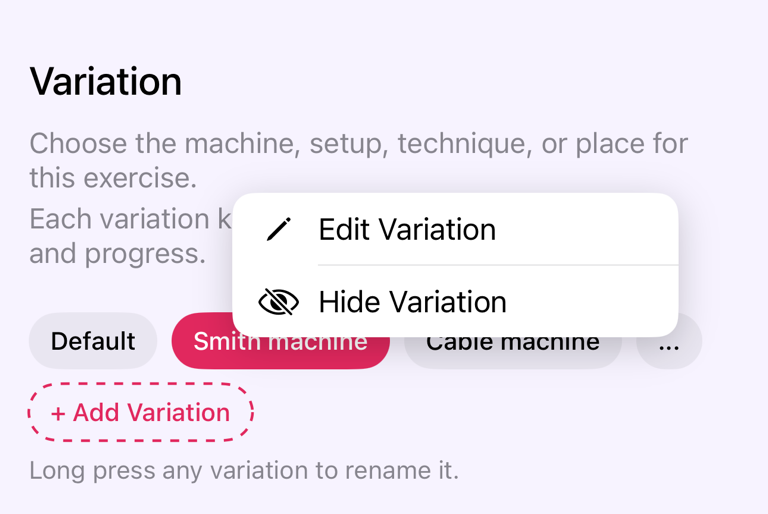
- Long press the variation chip.
- Tap Edit Variation.
- Enter the new name in New variation name.
- Tap Rename.
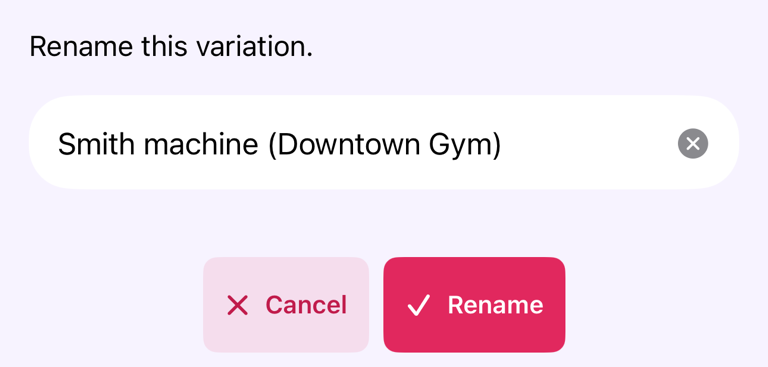
Renaming affects the variation name going forward. Past workouts stay attached to the same variation history.
Hide a variation
- Open Exercise Variation.
- Long press the variation chip.
- Tap Hide Variation.
Hidden variations are removed from the main list. Their workout history is not deleted.
Show hidden variations
- Open Exercise Variation.
- Tap ....
- Select the variation you want to use, or long press it to edit it.
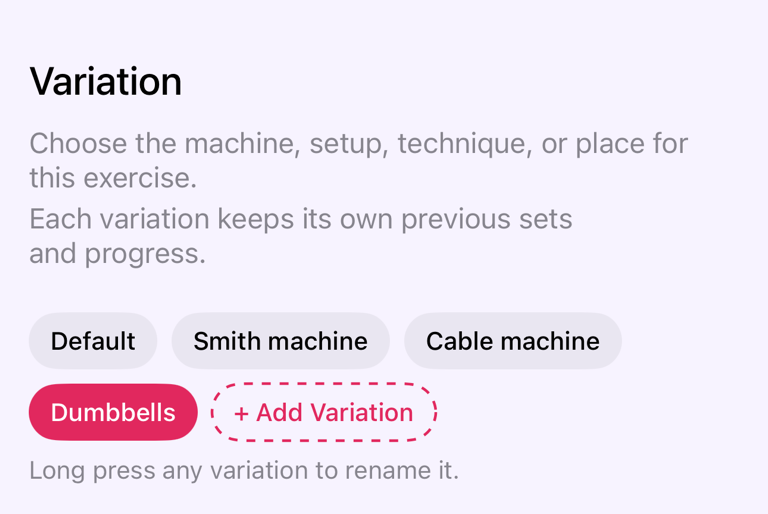
The ... chip appears when Gymfile has older or hidden variations that are not shown in the main list.
Merge variations
- Rename a variation to the same name as another variation.
- In Merge variations?, review the two names.
- Tap Merge.
The two variations become one variation, and their history is combined. You can also merge a variation into Default by renaming it to Default.
Important behaviour
Variation history is preserved when you rename, hide, or merge variations. Hiding is not the same as deleting.
Default is the starting variation for an exercise. You can use it like any other variation. If you rename it, Gymfile keeps the existing Default history with the renamed variation.
Changing the selected variation updates the current workout exercise to use that variation.
Auto-select variation by place affects future workouts at that location. It needs location access. If location access is denied, Gymfile shows Allow location access? with Open Settings.
Common questions
Should I create a variation for every small difference?
No. Create a variation only when you want separate progress history. Small day-to-day differences do not need a separate variation.
Can I delete a variation?
Not directly. Use Hide Variation if you no longer want it in the main list. Its history stays saved.
Why did Gymfile ask to merge variations?
Gymfile asks this when you rename a variation to a name that already exists, including Default. Merging combines the history instead of creating two variations with the same name.